

Setting up Engage
Step-by-step guide on setting up Engage as a destination in RudderStack.
RudderStack supports sending events to Engage via the following connection modes:
| Connection Mode | Web | Mobile | Server |
|---|---|---|---|
| Device mode | Supported | ||
| Cloud mode | Supported | Supported | Supported |
Once you have confirmed that the source platform supports sending events to Engage, follow these steps:
- From your RudderStack dashboard, add the source. Then, from the list of destinations, select Engage.
- Assign a name to your destination and click Continue.
Connection settings
To successfully set up Engage as a destination, you need to configure the following settings:
- Public Key: Enter your Engage public key. For more information on obtaining your Engage public key, refer to the FAQ section below.
- Private Key: Enter your Engage private key here. This key is required for deleting a user or updating their email in Engage.
- List IDs: Enter your Engage list ID. You can get it by logging into your Engage dashboard and going to Lists > clicking your list > Subscription and Settings > Your list ID.
- Client-side Events Filtering: This setting lets you specify which events should be blocked or allowed to flow through to Engage. For more information on this setting, refer to the Client-side Events Filtering guide.
- Use device mode to send events: Enable this setting to send your events to Engage via the web device mode.
FAQ
Where can I find the Engage Public Key and Private Key?
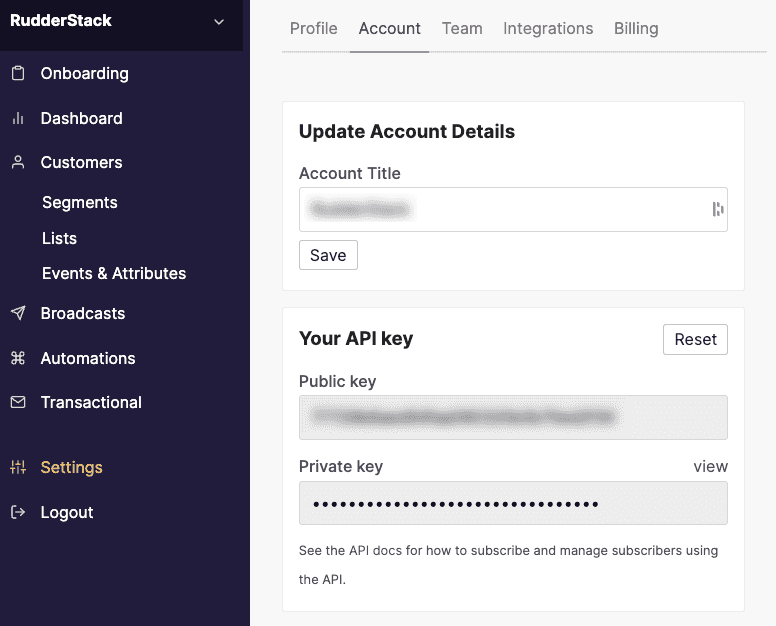
To get your Engage public key and private key, follow these steps:
- Log into your Engage dashboard.
- Navigate to Settings > Account > Your API Key, as shown:
Contact us
For more information on the topics covered on this page, email us or start a conversation in our Slack community.